Network Design and Security Best Practices
Network Design and Security Best Practices
- Segregate Networks with VLANs
- Create separate VLANs for homelab servers, personal devices, IoT devices, and a dedicated guest network.
- Example VLANs:
- VLAN 10: Servers
- VLAN 20: Personal
- VLAN 30: IoT devices
- VLAN 40: Guest network
- Wireless Access Point (AP) Configuration
- Broadcast Dedicated SSIDs for Each VLAN: Configure APs to broadcast unique SSIDs mapped to specific VLANs. This makes management easier and enhances security by ensuring devices on different SSIDs are isolated at the network layer.
- Example:
- SSID: Servers (VLAN 10)
- SSID: Personal (VLAN 20)
- SSID: IoT (VLAN 30)
- SSID: Guest (VLAN 40)
- Example:
- Isolate Guest Network: Ensure the guest SSID is assigned to a VLAN that is fully isolated from all other VLANs. Use firewall rules or Access Control Lists (ACLs) to block all inter-VLAN traffic for the guest network.
- No access to internal resources: Devices on the guest VLAN should only be able to access the internet, not other VLANs or devices.
- Broadcast Dedicated SSIDs for Each VLAN: Configure APs to broadcast unique SSIDs mapped to specific VLANs. This makes management easier and enhances security by ensuring devices on different SSIDs are isolated at the network layer.
- Captive Portal for Guest Access
- Set Up Captive Portal: Use your AP or network controller to enable a captive portal for the guest SSID. This requires guests to authenticate or accept terms before gaining internet access.
- Temporary Guest Access: Configure the captive portal to issue credentials (e.g., passwords or vouchers) that expire after 24 hours, ensuring guest access is time-limited and secure.
- Customization: Customize the captive portal with your branding, terms of service, and welcome messages. Some systems allow you to redirect users to a specific landing page after authentication5.
-
- Custom DNS for Network-Wide Ad and Malicious Traffic Blocking
- Pi-hole and AdGuard DNS: Deploy a custom DNS server such as Pi-hole or AdGuard DNS to block ads, trackers, and malicious domains at the network level. This provides privacy, security, and faster browsing by filtering unwanted DNS requests before they reach your devices.
- Network-Wide Protection: When used as the primary DNS server for your network, these solutions protect all devices, including those that do not support ad blockers or custom DNS settings.
- Local DNS Resolution: Both Pi-hole and AdGuard DNS can be configured to resolve local hostnames, allowing you to access self-hosted services by name (e.g.,
service.homelab) instead of by IP address. This is especially useful for managing multiple services and ensuring easy access within your network. - Custom Blocklists and Rules: Tailor your DNS filtering to your needs by adding custom blocklists or creating user rules to block or allow specific domains.
- Custom DNS for Network-Wide Ad and Malicious Traffic Blocking
- Device Isolation
- Layer 2 Isolation: Enable device isolation (client isolation) on the guest SSID so devices on the same VLAN cannot communicate with each other. This is especially important for public or semi-public networks.
- Wired and Wireless Isolation: For environments with both wired and wireless devices on the same VLAN, be aware that Layer 2 isolation is a Wi-Fi feature. Wired devices may still see wireless devices unless additional controls are in place.
- Firewall and ACL Configuration
- Block Inter-VLAN Traffic: By default, block all traffic between VLANs, especially between the guest VLAN and other internal VLANs
- Allow Only Necessary Communication: Create firewall rules to permit only required traffic (e.g., allow guest VLAN to access the internet, but not to internal servers or IoT devices).
- Exception for Captive Portal: If your captive portal controller or authentication server is hosted on another VLAN, create a specific firewall rule to allow guest devices to access only the necessary IP and port for the portal.
- Switch Configuration
- Tagged and Untagged Ports: Configure switch ports to tag VLAN traffic appropriately. For example, the port connecting to the AP should be set as a trunk port, allowing multiple tagged VLANs to pass through.
- PVID Settings: Ensure the Port VLAN ID (PVID) is correctly set for each port to assign untagged traffic to the correct VLAN.
Summary Table
| Network Segment | VLAN | SSID Example | Isolation | Access Control |
|---|---|---|---|---|
| Servers | VLAN10 | HomeLab | Yes | Internal only |
| Personal | VLAN20 | Personal | Yes | Internal only |
| IoT | VLAN30 | IoT | Yes | Internal only |
| Guest | VLAN40 | Guest | Full | Internet only, portal |
Zone based firewall in UDM
Zone-based firewalls in UDM (UniFi Dream Machine) allow for granular control of network traffic by segmenting the network into distinct security zones such as Internal, External, Gateway, VPN, Hotspot, DMZ, and IoT. Instead of relying solely on IP-based rules, this approach defines security policies based on relationships between these zones. This improves scalability, reduces configuration complexity, and enhances threat containment—critical for environments where different devices (e.g. NAS, smart cameras, home automation) require varying levels of access.
The illustrated matrix maps inter-zone traffic flow policies, highlighting where traffic is explicitly Allowed, Blocked, or conditionally permitted via return rules.
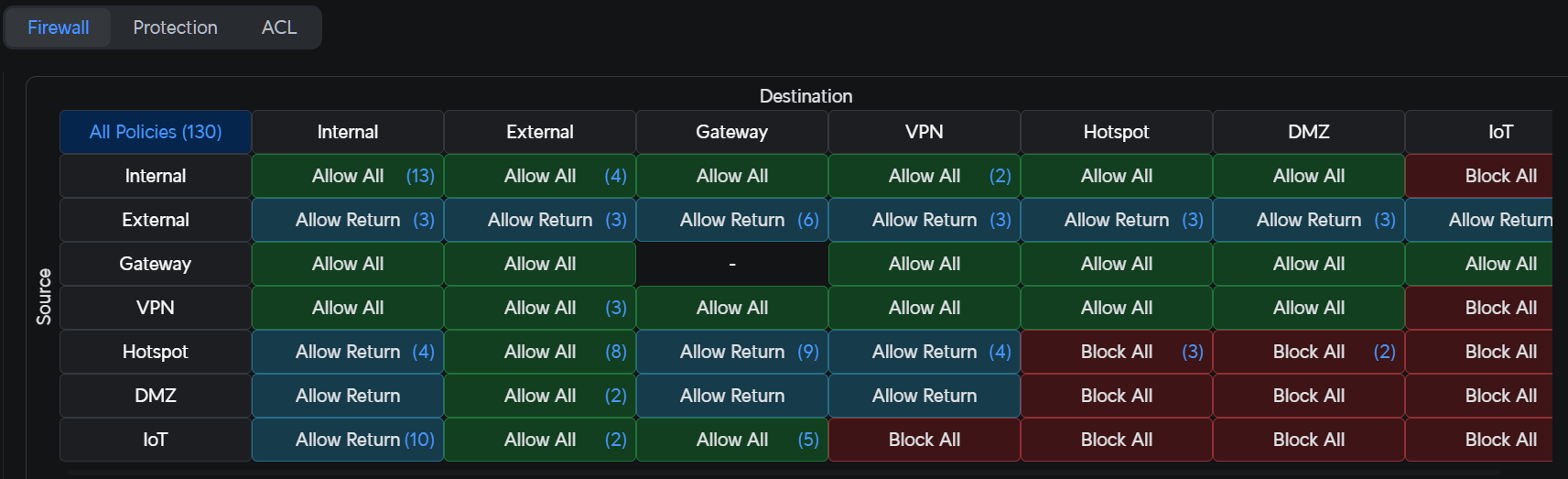
Example Firewall Rules Overview
These example rules reflect common best practices in a multi-zone home or small-office network:
- Allow all to DNS (Pihole / AdGuard)
Ensures all devices can resolve DNS via local filtering services while minimizing external DNS leakage. - Allow Servers to IoT
Permits management and telemetry traffic (e.g. Home Assistant to smart devices) without granting IoT devices reverse access. - Allow Servers to all VLANs
Grants central management servers (e.g. NAS, automation hubs) full visibility and administrative control across all zones. - Allow HA (IoT) to HA (Servers)
Supports bidirectional Home Assistant traffic where IoT and server components span separate VLANs. - Allow NAS to Cameras
Enables storage solutions to archive surveillance feeds, with camera VLANs otherwise isolated. - Block Invalid Traffic
Drops malformed or unexpected packets to reduce attack surface and mitigate spoofing or scanning attempts. - Block IoT to Non-IoT Gateway
Prevents IoT devices from directly communicating with sensitive upstream services (e.g. cloud gateway, admin interfaces). - Block IoT Inter-VLAN
Restricts lateral movement among IoT devices on different VLANs, containing compromise within a single zone. - Block IoT UDM UI
Protects your network controller’s administrative interface from exposure to less-trusted devices.
Documentation and Planning
-
Document everything:
- Keep track of IP addresses, VLAN IDs, device configurations, and network topology.
- Use tools like Notion, Obsidian, or spreadsheets to organize information.
- Good documentation saves time troubleshooting and scaling your lab later.
-
Plan for future growth:
- Choose equipment with room to expand (more ports, higher speeds, PoE support).
- Consider power consumption and noise if running 24/7[1][11].